
Using ActionScript
Objectives:
- Work with properties in ActionScript
- Use dot notation
- Begin working with properties of movieclips
Adapted from Drag Slide Fade by Brendan Dawes
Working With Properties
Properties, if you recall, are the characteristics of an object that you see. Hair color, height, weight--are all properties of a human being. In Flash, and in Object Oriented Programming in general, every thing you see on the screen is an object that has properties that you, the programmer, can change. In Flash, when you make objects into movieclips, you can change the movieclip's properties using ActionScript.
However, to make it work, you need to give the movieclip a name using the Instance panel. You make a movieclip and then you can use a hundred of them in your program. If you name each instance using the instance panel, you can do all sorts of things with them. Check out this sample of what we're about to do. Try this:
- Start a new Flash movie.
- Insert a new graphic symbol and draw a picture of a lightbulb. Name it lightbulb.
- Create a new movieclip named lightbulb1 and drag your lightbulb symbol into the movieclip.
- Now, drag your movieclip onto the main stage, and open the instance panel. Name this instance, lightbulb1. Be sure you only have the movieclip on the stage.
- Create a button symbol and make a simple button. Drag it onto the stage (in its own layer).
- Select your button. Open the object actionscipt window. Select
Expert Mode by clicking on the little arrow to the right of the ActionScript window.
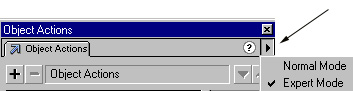
Type:
on (press) {
lightbulb1._alpha=10;
}
on (release) {
lightbulb1._alpha = 100;
}
- All we messed with here is one property: alpha. Take a look at all the properties available to you in ActionScript under properties. Try adding a couple more to your code. For example, try changing the rotation property to 90.
Assignment
Demonstrate your understanding of properties by creating a Flash movie with three buttons that control three different movie clips. Keep everything on its own layer.
<< Back to Skyline